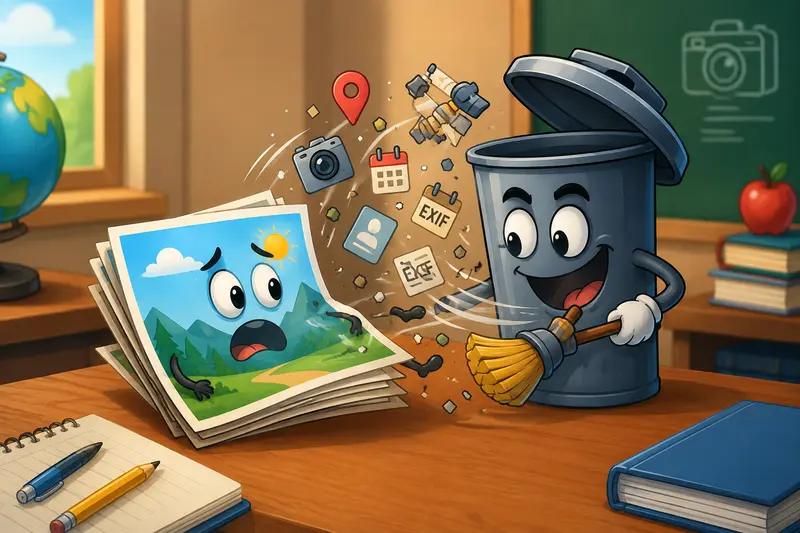
Photos shared in school groups, classroom portals, or email threads often contain more information than people realize. A simple JPG taken on a phone can include GPS coordinates, device details, timestamps, editing history, and camera metadata hidden inside the file.
For teachers, that matters.
Whether youre uploading classroom materials, sharing student project photos, or sending screenshots to parents, its smart to clean image metadata online before those files leave your device.
The good news is that Windows users no longer need heavy desktop software for this task. Browser-based tools now handle metadata removal quickly while keeping image quality intact.
What You Need to Know First
If your goal is to:
- remove EXIF online
- reduce hidden location data
- clean photos before uploading to school systems
- avoid installing desktop apps
- process multiple images efficiently
then a browser-based metadata scrubber is usually the most practical option.
A dedicated online cleaner removes hidden metadata while preserving the visible image itself. In most cases, the process only takes a few moments, even for larger batches of files.
Why Metadata Can Become a Privacy Problem
Image metadata exists for good reasons. Cameras and phones store technical details automatically:
- device model
- exposure settings
- GPS coordinates
- creation dates
- editing software history
But once files are shared publicly, those details can travel with the image indefinitely.
Teachers frequently work with:
- classroom event photos
- scanned worksheets
- student submissions
- whiteboard snapshots
- exported learning materials
Removing metadata before sharing helps reduce unnecessary exposure, especially when files move across multiple platforms.
Some school systems strip metadata automatically. Others do not. Assuming files are already clean is risky.
A Cleaner Workflow for Windows Users
One practical option is Filemazing Metadata Scrubber https://filemazing.com/metadata-scrubber, a browser-based tool designed for file cleanup tasks without requiring local installation.
The platform leans heavily into privacy-first processing, which makes sense for educational environments where sensitive material may occasionally appear inside images or scans.
Because everything runs in the browser, Windows users avoid the usual software maintenance cycle:
- no installers
- no updates
- no system permissions
- no background services quietly lingering afterward
Filemazing also supports temporary processing rather than long-term storage, which is an important trust factor when handling shared media files.
How the Cleanup Process Typically Works
The workflow feels straightforward without being oversimplified.
- Upload one or multiple image files
- The system scans and strips metadata fields
- Cleaned versions are generated for download
- Temporary processing artifacts are removed afterward
This approach works well for common formats like:
- JPG
- PNG
- WEBP
- TIFF
If you first need to extract visuals from classroom PDFs, you can also use PDF page export tools https://filemazing.com/pdf-to-image before cleaning the resulting image files.

Real-World Testing: What Happened
To evaluate the workflow realistically, I tested a mixed set of files commonly used in educational environments:
- 18 smartphone JPG photos
- 6 scanned PNG worksheets
- 4 exported screenshots from PowerPoint
- total upload size: roughly 142 MB
The images included visible metadata such as:
- camera model information
- timestamps
- embedded GPS coordinates
- editing software tags
Processing completed in under two minutes on a standard Windows laptop using Chrome.
A few observations stood out:
- JPG files cleaned extremely well with no visible quality change
- PNG scans retained sharp text edges after processing
- Larger phone photos took slightly longer due to file size
- Batch handling was noticeably smoother than manually editing file properties in Windows Explorer
One useful takeaway: removing metadata does not automatically compress the image itself. Large photos remain large unless compression is applied separately.
That distinction matters when uploading materials to learning management systems with attachment limits.
One Small Mistake People Often Make
Many users believe screenshots are always metadata-free.
They usually arent.
Modern screenshot tools on Windows and phones may still embed:
- creation timestamps
- software identifiers
- color profile information
- editing history
If screenshots are being shared externally especially inside parent communications or online teaching materials they should still be cleaned.
Another overlooked issue involves re-exported files. Editing an image in certain applications can actually add fresh metadata back into the file after cleanup.
So if you edit first and scrub later, you avoid repeating the process twice.
Choosing Between JPG and PNG After Metadata Removal
This is where practical tradeoffs matter.
JPG
Better for:
- smaller file sizes
- classroom photo sharing
- email attachments
Tradeoff:
- repeated saves can gradually reduce quality
PNG
Better for:
- scanned worksheets
- diagrams
- screenshots with text
Tradeoff:
- much larger files
For teachers sharing instructional materials, PNG often preserves readability better, especially for thin fonts and handwritten annotations.
For event photos or general classroom images, JPG is usually more storage-friendly.
If format compatibility becomes an issue later, image format conversion workflows https://filemazing.com/format-converter can help convert cleaned files without reinstalling desktop utilities.
Situations Where Teachers Commonly Use Metadata Cleanup
Here are a few realistic examples where metadata removal makes sense:
- Uploading classroom activity photos to a school portal
- Sending scanned worksheets to external tutoring services
- Sharing screenshots during remote learning sessions
- Posting student project examples online
- Preparing conference presentation visuals
- Organizing archived teaching materials before cloud storage uploads
In practice, the workflow becomes part of routine file hygiene rather than a specialized technical task.
What Makes Browser-Based Cleanup Convenient
Traditional desktop metadata editors still exist, but browser-based tools reduce friction considerably.
A few advantages stand out:
- works across different Windows devices
- avoids software installation restrictions on school computers
- easier for non-technical staff
- handles multiple files more efficiently
- integrates naturally into cloud-based workflows
Filemazing also uses transparent token pricing instead of forcing subscriptions, which is useful for occasional usage patterns common in schools and education teams.
The metadata scrubber itself uses relatively lightweight token consumption compared to heavier processing tools like large PDF conversions.
Security and Privacy Considerations
When dealing with educational files, privacy matters more than convenience.
A trustworthy metadata cleaning platform should:
- avoid long-term file retention
- process uploads temporarily
- remove generated artifacts automatically
- avoid unnecessary account requirements
That temporary-processing approach is one reason browser-based privacy-safe image cleanup tools are becoming more common in schools and remote teaching environments.
For especially sensitive media, some users also choose to encrypt private files before sending them externally https://filemazing.com/encrypt-file after metadata removal.
Common Questions
Does removing metadata reduce image quality?
Usually no. Metadata removal targets hidden information rather than visible pixels. Quality changes mainly happen during compression or format conversion.
Can I remove EXIF online without installing software on Windows?
Yes. Browser-based tools allow you to upload files directly and process them online without desktop installation.
Are PNG files safer than JPG files for privacy?
Not automatically. Both formats can contain metadata depending on how they were created or exported.
Is metadata cleanup useful for scanned worksheets?
Absolutely. Scanners and editing software often attach timestamps, device information, and software identifiers to exported files.
What happens to uploaded files after processing?
Privacy-conscious services typically use temporary processing and cleanup schedules rather than permanent storage systems.
Can cleaned images still be converted afterward?
Yes. After metadata removal, images can still be converted into other formats if needed for compatibility or file size management.

Final Thoughts
For Windows users especially teachers handling shared educational materials it makes sense to clean image metadata online before distributing files publicly or externally.
The process is faster than most people expect, and modern browser-based tools remove much of the friction that older desktop utilities created.
Filemazing works well because it focuses on practical workflows:
- privacy-aware processing
- temporary file handling
- browser accessibility
- predictable usage costs
- support for broader file preparation tasks beyond metadata cleanup
Whether youre preparing classroom photos, scanned handouts, or presentation screenshots, removing hidden metadata is one of those small habits that quietly improves digital privacy over time.