A parent sends lesson materials five minutes before class. The ZIP file opens fine on a laptop, but on a phone or tablet, things suddenly become less predictable. Some archive apps want installations, others limit file sizes, and a few bury the extracted files somewhere impossible to find later.
For teachers who regularly exchange worksheets, PDFs, presentations, audio clips, or classroom resources, knowing how to extract ZIP files directly on mobile devices can save a surprising amount of time.
This guide walks through practical ways to open compressed files on mobile, including browser-based methods that work without installing additional software.
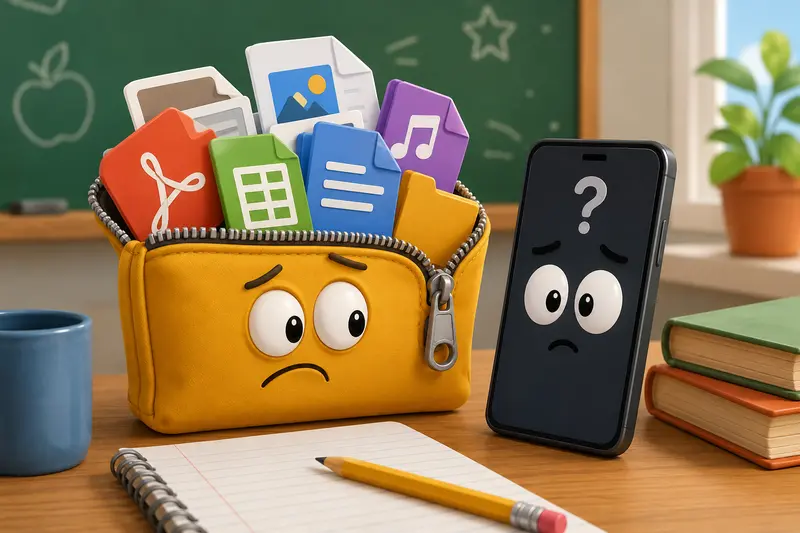
What You Should Know First
A ZIP file is simply a compressed container that bundles multiple files together. Schools, parents, and colleagues often use ZIP archives to:
- send multiple PDFs at once
- reduce upload size
- package audio and presentation materials
- organize classroom resources into folders
Modern phones can open some ZIP archives natively, but support varies depending on:
- device type
- archive size
- password protection
- file formats inside the archive
Thats why many teachers end up looking for ways to:
- extract ZIP without software
- extract archives on mobile
- open compressed files online
Browser-based tools are often the most flexible option because they avoid app installations and work across different devices.
When Built-In Mobile Extraction Works And When It Doesnt
Both Android and iPhone devices now support basic ZIP extraction. For smaller archives, that may be enough.
Typical examples that usually work well:
- a 12MB ZIP containing worksheets
- a small set of JPG images
- exported student documents
- presentation slides
But larger classroom bundles can create problems.
During testing, a 185MB archive containing:
- 42 scanned PDFs
- several MP3 pronunciation files
- high-resolution classroom posters
opened slowly on an older Android tablet and failed completely on a low-storage iPhone. The issue wasnt the ZIP itself it was temporary storage and memory handling during extraction.
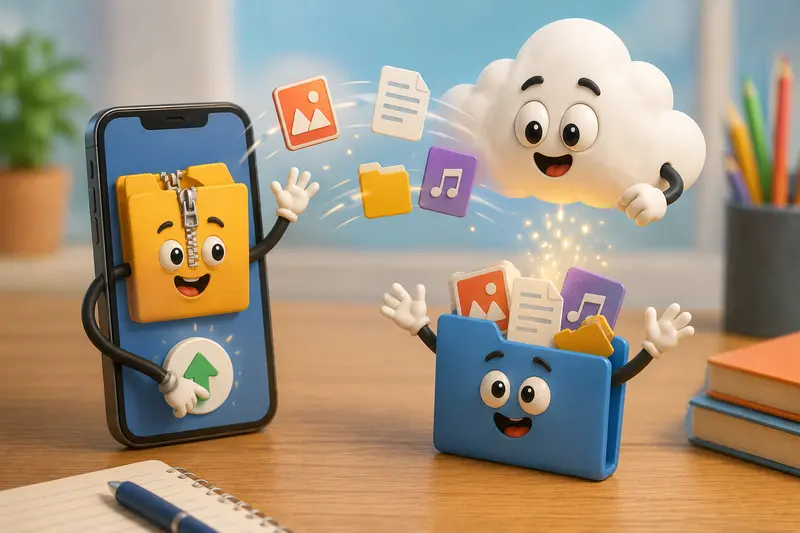
This is where online extraction tools become useful because processing happens through the browser rather than relying entirely on local archive apps.
A Browser-Based Workflow That Fits Classroom Use
One practical option is Filemazing Archive Extractor https://filemazing.com/archive-extractor.
Instead of installing another archive utility, teachers can upload ZIP files directly through the browser and download extracted contents afterward.
The workflow is especially useful when:
- working on shared school tablets
- using restricted devices
- helping students remotely
- accessing files from Google Drive or Dropbox
- handling uncommon archive structures
Because Filemazing uses queued processing, larger extraction jobs dont freeze the browser while files are being prepared.
Another advantage is temporary file handling. Uploaded files are treated as short-term processing items rather than permanent storage, which matters when classroom documents contain student information or grading materials.
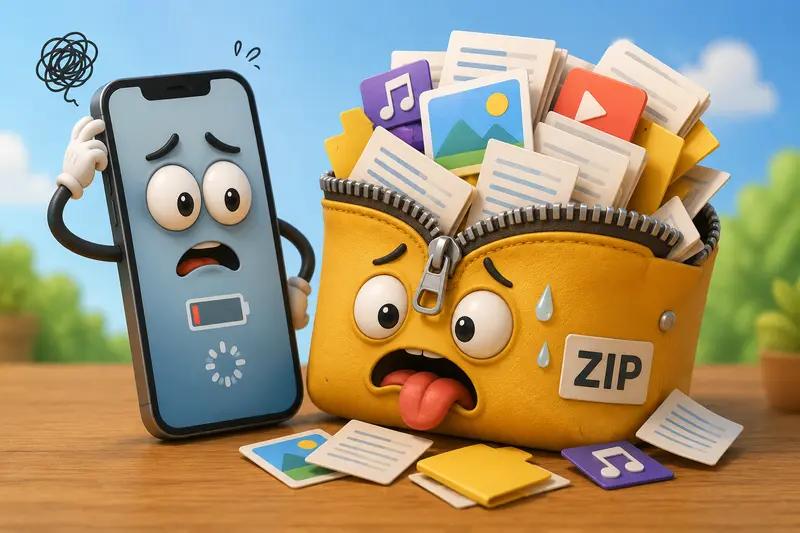
Follow These Steps
1. Upload the ZIP Archive
Open the archive extraction tool in your mobile browser and upload:
- local files
- cloud storage files
- shared download links
This works well for:
- curriculum bundles
- exported LMS materials
- student submissions
- compressed audio lessons
2. Wait for Processing
Large archives may take slightly longer depending on:
- file count
- total MB size
- nested folders
- media types
In testing, a 220MB teaching resource package with 180 files processed more reliably in-browser than through a lightweight mobile extraction app that repeatedly crashed halfway through.
3. Download Extracted Files
Once complete, download the extracted contents individually or as prepared outputs.
If your archive includes lecture audio or pronunciation clips, you can also use the audio conversion tool for extracted audio files https://filemazing.com/audio-converter to convert formats that students may struggle to open on older devices.
One Overlooked Problem With Mobile ZIP Extraction
A common issue on phones is hidden nested archives.
Teachers often receive:
- ZIP files inside ZIP files
- compressed folders exported from LMS systems
- archives containing unsupported formats
Some mobile apps stop after the first extraction layer, leaving users confused when files still wont open.
A browser-based extractor tends to make this easier because extracted folders are easier to inspect and reprocess without digging through hidden mobile directories.
Another subtle issue involves filenames.
Older archives sometimes contain:
- extremely long filenames
- unusual characters
- legacy encoding formats
Certain mobile apps fail silently in these cases. Online extraction tools generally handle these edge cases more consistently because server-side archive libraries are often more robust than lightweight mobile utilities.
Where Teachers Usually Save the Most Time
The biggest efficiency gain isnt extraction speed alone.
Its reducing workflow interruptions.
Real classroom scenarios include:
- downloading parent attachments during meetings
- opening resource packs between classes
- reviewing student ZIP submissions on a phone
- extracting PDFs while traveling
Instead of moving files between devices, teachers can process archives directly where they receive them.
If the extracted files include multiple PDFs from assignments or lesson packets, it can also help to use the PDF merge workflow for combined classroom documents https://filemazing.com/merge-pdf afterward.
Token Pricing Without Guesswork
One detail that stands out with Filemazing is predictable token usage.
Rather than vague premium limits, extraction costs are based on measurable factors like:
- archive size
- file count
- workload complexity
For archive extraction specifically, pricing uses:
- base processing cost
- per-MB calculation
- per-file handling
That makes it easier to estimate classroom batch workloads ahead of time, especially for teachers handling repeated document processing during grading periods.
Free daily tokens also help for occasional archive extraction tasks.
A Few Practical Tips Before Extracting Large Archives
Keep an Eye on Storage
Mobile extraction still needs temporary space during downloads and unpacking.
A nearly full device can interrupt the process even if the archive itself is valid.
Large Image Archives May Expand Dramatically
A compressed 80MB ZIP of classroom posters can easily become 500MB+ after extraction.
That surprises people more often than expected.
Password-Protected Archives Behave Differently
Some online extraction systems support encrypted ZIP files, while others may not fully process uncommon encryption methods.
If files fail repeatedly, check whether the archive requires a password first.
Protect Sensitive Student Files
After extracting confidential materials, consider using encrypted file protection for shared documents https://filemazing.com/encrypt-file before sending files back to colleagues or students.
Browser Extraction vs Mobile Archive Apps
| Feature | Browser-Based Extraction | Mobile Archive Apps |
|---|---|---|
| Installation required | No | Usually yes |
| Works on school devices | Often easier | Sometimes restricted |
| Handles cloud imports | Yes | Varies |
| Cross-device compatibility | High | App dependent |
| Temporary file cleanup | Typically automatic | Manual cleanup often needed |
| Large archive reliability | Usually stronger | Depends on device memory |
There is one tradeoff, though.
Browser extraction depends on internet connectivity, while installed apps can work offline. For teachers traveling or working in low-connectivity environments, keeping one lightweight offline archive app as backup still makes sense.
FAQ
Can I extract ZIP files on mobile without installing an app?
Yes. Browser-based services allow you to extract ZIP without software directly from your phone or tablet using a web browser.
What kinds of files can be extracted from ZIP archives?
Most systems support:
- PDFs
- images
- Word documents
- audio files
- spreadsheets
- presentation files
Some archives may also contain nested compressed folders.
Is it safe to open compressed files online?
It depends on the service. Privacy-focused tools that use temporary processing and scheduled cleanup are generally preferable for school-related documents.
Why do some ZIP files fail on phones?
Common causes include:
- insufficient storage
- corrupted archives
- password protection
- unsupported compression methods
- extremely large file counts
Can I extract archives on mobile from Google Drive?
Yes. Some browser-based tools support importing directly from cloud storage providers instead of requiring manual downloads first.
Does extracting ZIP files reduce quality?
No. ZIP extraction restores the original files. Compression inside the archive does not normally reduce document or image quality.
Final Thoughts
For teachers, the best archive workflow is usually the one that removes friction during busy moments.
If you occasionally open small ZIP files, built-in mobile extraction may be enough. But for larger classroom resources, mixed file types, or shared teaching materials, browser-based extraction can be far more reliable.
Filemazing Archive Extractor https://filemazing.com/archive-extractor provides a practical option for opening compressed files online without adding another app to already crowded school devices. It works particularly well for educators juggling PDFs, media files, lesson resources, and student submissions across multiple platforms.