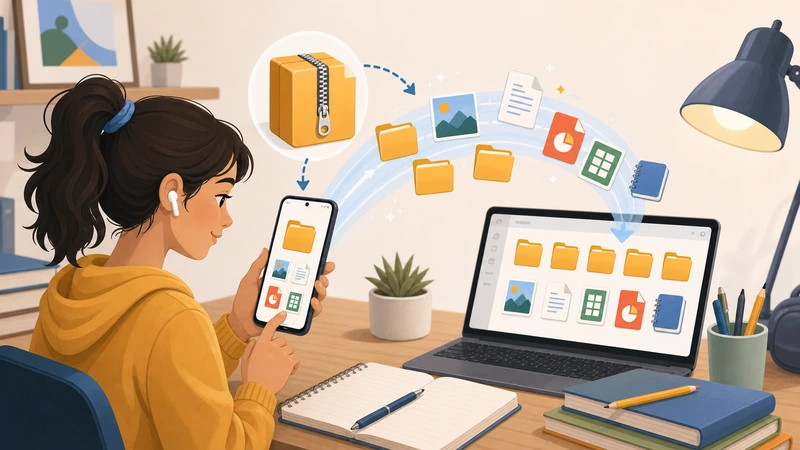
Teachers increasingly work from phones and tablets, especially when checking shared materials quickly between classes or while away from a desk. That is why ZIP files can become surprisingly annoying. A colleague sends a bundle of worksheets, slides, or media assets, and what should be a simple open-and-review step turns into a device problem.
The issue is rarely the archive itself. The real friction comes from mobile context: limited storage, awkward built-in extractors, mixed file types, and the fact that the ZIP is usually just the start of the task rather than the end of it.
If you need to open school ZIP files on Android, the best workflow is the one that gets you to the lesson materials quickly without adding more complexity than the job deserves.
Why teachers receive ZIP files so often
Education workflows produce bundles constantly. A single folder may contain PDFs, handouts, images, grading rubrics, presentation slides, and exported media. Sending those items one by one is clumsy, so they usually arrive compressed together.
That makes sense for the sender, but it means the recipient has to unpack a mixed collection on whatever device is currently available.
Why Android can make this harder than expected
- Some file managers only handle basic archive tasks well.
- Large media-heavy ZIPs expand much more than the download size suggests.
- Shared school devices are often locked down.
- The extracted files may still need to be reviewed, converted, or redistributed afterward.
In other words, the extraction step is often a bottleneck because it sits in the middle of a broader teaching workflow.
What to do before you extract anything
Check what you actually need
If the archive contains twenty files but you only need the worksheet PDF and two images, keep the workflow focused on those outputs.
Consider where the files go next
Are you reading them on the phone, uploading them to a school platform, or forwarding them to students? That answer changes what “done” looks like.
Watch the real size, not just the ZIP size
A compact archive can expand quickly, especially if it contains images, presentations, or multiple PDFs.
When a browser workflow helps
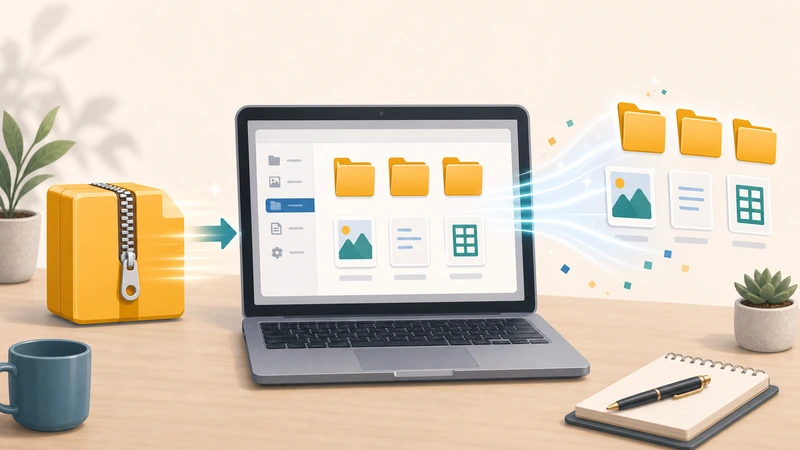
A browser-based archive tool can be the easiest option when you do not want to install extra utilities or rely on a built-in extractor that behaves inconsistently.
Filemazing's Archive Extractor is useful in that situation because it is designed for short-lived processing and straightforward access to the files you need next.
That matters for teachers because the archive itself is rarely the end goal. The real goal is to get lesson material into a usable form quickly.
Common school use cases after extraction
- open a PDF worksheet before class
- pull images out of a shared media bundle
- review a zipped student resource pack
- forward selected files to students or parents
- move files into another tool for conversion or cleanup
If the extracted files still need work, Filemazing's related tools can help. Images can go to Compress Image, PDFs can move to PDF to Image, and private handoff files can be protected with Encrypt File.
Mistakes that waste time
Extracting everything by default
That can create unnecessary clutter, especially on a phone with limited storage.
Ignoring follow-up tasks
If the extracted files still need to be resized, merged, or re-shared, choose a workflow that makes the next step easy rather than treating extraction like the finish line.
Leaving copies on shared devices
That matters more in education settings than many people expect. Temporary files can linger if nobody is deliberate about cleanup.
A practical Android workflow for teachers
- Open the ZIP only when you know which files you actually need.
- Extract the smallest useful set of materials.
- Review the files immediately.
- Move them into the next step such as upload, print prep, or sharing.
- Remove leftover copies from shared or borrowed devices.
Frequently asked questions
Can I open school ZIP files on Android without installing another app?
Yes, in many cases a browser-based archive workflow is enough for quick access and review.
What if the ZIP contains PDFs and images together?
That is common. Extract the files first, then move only the needed ones into the next workflow.
Is this useful for shared school devices?
Yes, especially when software installs are restricted and you want a more temporary processing approach.
What should I do after extraction?
Review the files, upload them where they belong, and remove unnecessary temporary copies from the device.
Final takeaway
Teachers do not need a complicated archive strategy. They need a reliable way to get lesson materials out of ZIP files and into the classroom workflow with minimal delay.
When Android is the device in front of you, the simplest practical option is often best. If you want quick access without extra software overhead, start with Filemazing Archive Extractor and keep the workflow centered on the files you actually need.