Most people do not search for "7Z extraction" because they love archive formats. They search because someone sent them a file they need right now and the format got in the way.
That is the right lens for this topic. The goal is not to become an archive expert. The goal is to get the contents out cleanly and move on.
7Z is popular because it can be efficient and flexible, but those same traits can make it less predictable across devices and lightweight tools than a basic ZIP file.
Why 7Z feels harder than ZIP
- support varies more across tools and platforms
- archives may use passwords or different compression methods
- large archives can expand far beyond the visible download size
- people often receive 7Z packages in workflows that are already time-sensitive
That combination is why a format that looks simple from the outside often becomes frustrating in practice.
Start with the real question
Before opening the archive, ask: What do I actually need from inside it?
If the answer is "two documents and a few images," the best workflow is different from a case where you need the entire package intact for long-term work.
Common reasons 7Z extraction fails
Wrong password
Still one of the most common causes. Check spaces, capitalization, and copy-paste errors first.
Partial download
The file may look complete even when it is not. Re-downloading often solves "mysterious" extraction problems.
Tool compatibility
Some lightweight tools do not handle every archive configuration reliably.
Device limitations
Large archives can stress memory, storage, or processing capacity on smaller devices.
When a browser workflow is a good choice
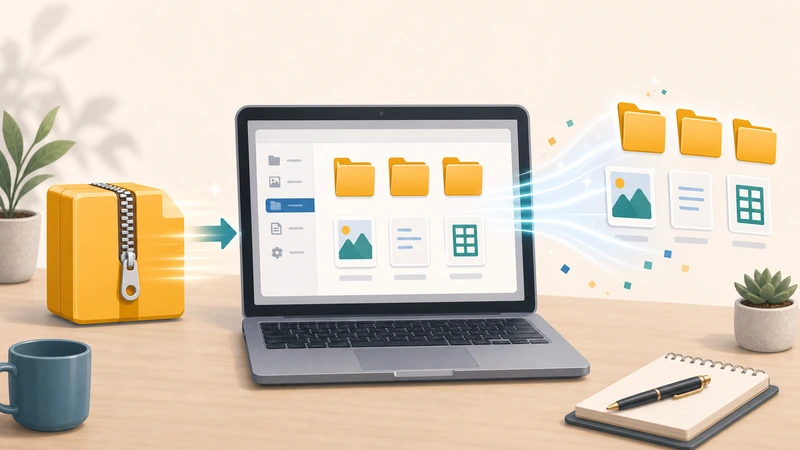
A browser-based extractor is useful when you want quick access without setting up a full local archive-management workflow. It is especially helpful for temporary or one-off jobs.
Filemazing's Archive Extractor fits that use case well because it is designed around short-lived processing instead of long-term file storage.
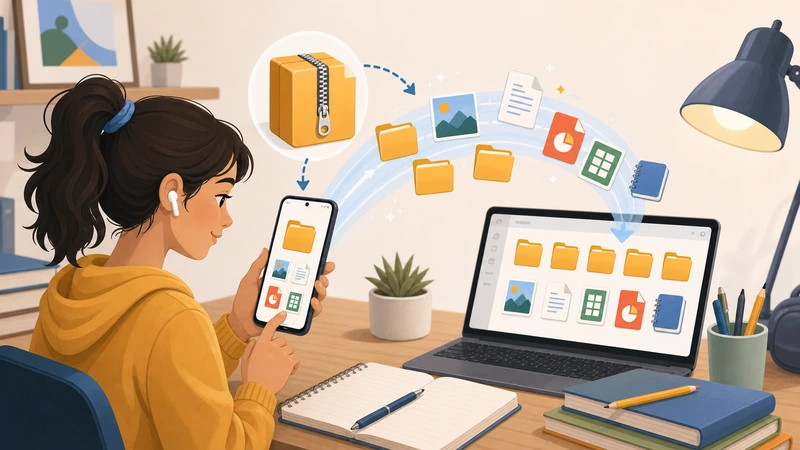
Once the files are out, you can move directly into the next task instead of making the extraction tool the center of the job.
What usually happens after extraction
- documents get reviewed or forwarded
- images get compressed or converted
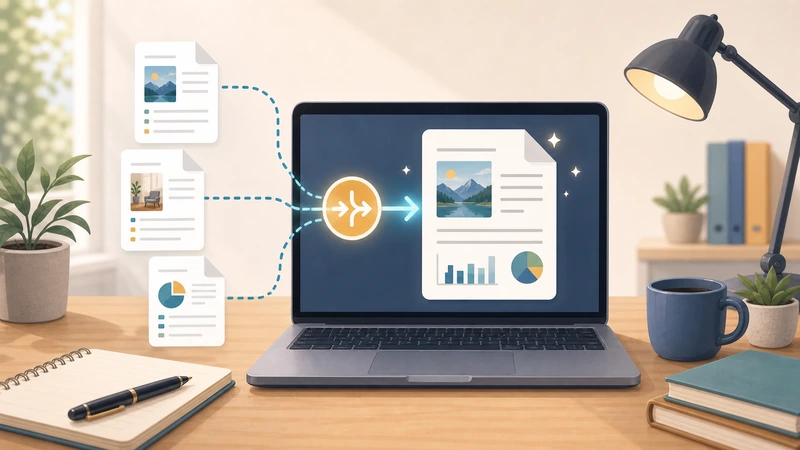
- PDFs get merged or exported into pages
- sensitive files get protected before resharing
That is why connected tools matter. Extract first, then use Compress Image, PDF to Image, Merge PDF, or Encrypt File based on what the contents need next.
How to avoid making the process bigger than it is
- Decide whether you need all files or only a subset.
- Verify the archive is complete and not password-blocked unexpectedly.
- Extract only what matters if the workflow allows it.
- Move the recovered files into the next real task immediately.
Frequently asked questions
Why are 7Z files harder to open than ZIP files sometimes?
Because support and compatibility vary more across tools, especially with passwords, large sizes, or different compression methods.
Should I ask for ZIP instead?
If compatibility matters more than compression efficiency, ZIP is often the easier handoff format.
Is a browser extractor enough for normal 7Z tasks?
Often yes, especially when the real goal is quick access rather than long-term archive management.
What should I do after extracting?
Move the files into their actual next workflow step instead of leaving them scattered in temporary locations.
Final takeaway
7Z extraction feels difficult mostly when the workflow around it is unclear. If you define what you need from the archive first, the task becomes much simpler.
When you want a fast browser-based way to get at the contents and keep moving, Filemazing Archive Extractor is a practical option.