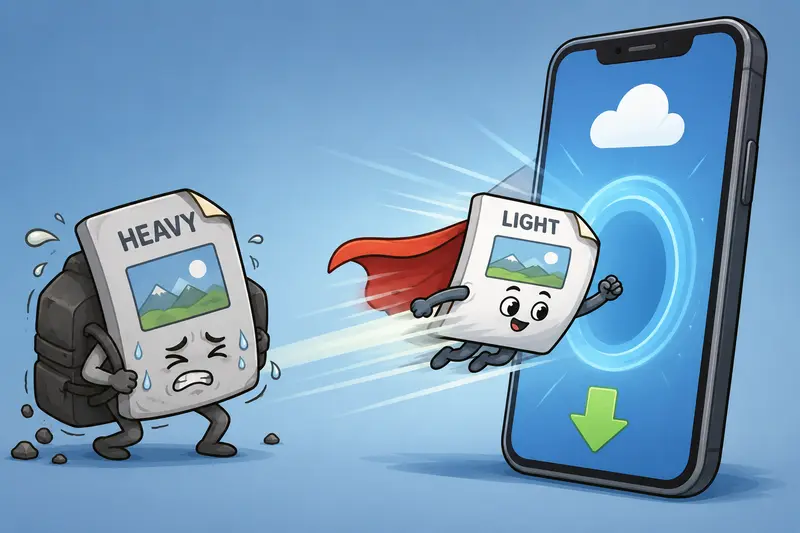
Large image files and mobile uploads are a bad combination when youre rushing to submit assignments, upload portfolio work, or send presentation slides before class. Many students end up searching for ways to compress images online simply because a single PNG screenshot or high-resolution JPG from a phone camera can suddenly turn into a 20MB problem.
That gets even more annoying on slower mobile connections. Nobody wants to stare at an upload bar while a deadline gets closer.
Fortunately, modern browser tools make image compression much easier without needing desktop software or editing apps.

The Short Version
If you need to reduce image file size directly from your phone, a browser-based tool like Filemazing Compress Image Tool https://filemazing.com/compress-image lets you:
- compress PNG and JPG files online
- reduce upload times for assignments
- save mobile storage space
- prepare images for websites or LMS platforms
- process files without installing apps
The tool runs entirely in the browser, which is especially useful for students switching between phones, tablets, school laptops, and shared devices.
A practical advantage is that uploaded files are treated as temporary processing data rather than permanent cloud storage. That matters when assignments contain personal information, scanned IDs, or coursework drafts.
Why Students Run Into Image Size Problems
Phone cameras have improved dramatically, but that also means file sizes keep growing.
A few common situations:
- Taking screenshots of lecture slides
- Uploading scanned homework pages
- Sending lab reports with embedded images
- Submitting design projects
- Sharing portfolio samples
- Uploading images to online classroom systems
PNG files are often the biggest culprit. They preserve quality well, but they can become unnecessarily heavy for ordinary submissions. If you need to compress PNG for website speed or academic portals, reducing dimensions and optimizing compression settings usually helps more than students expect.
Meanwhile, JPG files are better for photos but can still become oversized when exported at maximum quality from mobile devices.
Getting It Done on Mobile
The workflow is refreshingly straightforward.
1. Open the compression tool in your browser
Visit Filemazing Image Compression https://filemazing.com/compress-image from your mobile browser.
No app installation is required.
2. Upload your images
You can upload:
- JPG
- PNG
- WEBP
- multiple files in batches
This works well for students organizing screenshots from classes or compressing multiple presentation graphics at once.
3. Let the tool process the files
Filemazing focuses heavily on workflow efficiency. Large uploads are queued and processed without freezing the interface, which is surprisingly useful when working on older phones.
4. Download optimized images
Once complete, download the smaller versions and upload them wherever needed.
If youre preparing visuals from study materials or slides, the PDF to Image converter https://filemazing.com/pdf-to-image can also help turn PDF pages into JPG or PNG files before compression.
What We Tested
To see how practical mobile compression actually feels, we tested a realistic student workflow:
- 12 lecture screenshots
- 4 camera photos of handwritten notes
- total upload size: 48MB
- mixed PNG and JPG formats
- processed through mobile Chrome
Results:
- compressed output reduced total size to roughly 11MB
- upload and download times stayed responsive
- screenshots remained readable
- handwritten notes preserved enough clarity for sharing
The biggest reduction came from PNG screenshots with oversized dimensions.
A useful takeaway: shrinking image dimensions slightly often matters more than aggressive compression percentages. Many students try to force maximum compression immediately and end up with blurry text. The goal is smaller files not transforming your lecture notes into abstract art.
One Important Tradeoff Most Students Ignore
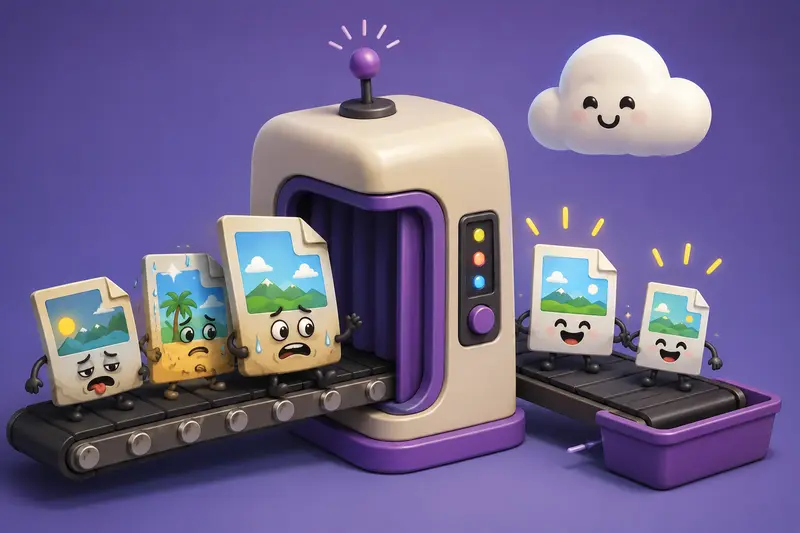
Compression always involves balance.
JPG vs PNG on mobile
JPG
- smaller file sizes
- better for photos
- slight quality loss possible
PNG
- sharper text and graphics
- larger files
- better for screenshots and diagrams
If your assignment contains:
- code snippets
- charts
- lecture slides
- UI mockups
PNG may still be preferable even after optimization.
But for ordinary phone photos, using JPG often makes far more sense when you want to reduce JPG size online without noticeable quality loss.
A Smart Privacy Habit Before Sharing Files
Students frequently share compressed images through:
- Discord
- Google Classroom
- cloud drives
- team projects
What many people forget is that images can contain hidden metadata like:
- device information
- GPS coordinates
- timestamps
Before sharing sensitive coursework or personal images, using a metadata removal tool for images https://filemazing.com/metadata-scrubber can help remove embedded metadata from files.
For particularly sensitive documents, you can also encrypt compressed files before sharing https://filemazing.com/encrypt-file to add another layer of protection.
Where This Saves Time for Students
Here are a few real-world situations where image compression becomes genuinely useful:
- Uploading scanned homework over mobile data
- Sending portfolio samples to professors
- Reducing image-heavy PowerPoint exports
- Sharing design drafts in group projects
- Optimizing images for student websites
- Compressing screenshots before LMS submissions
Students working with limited storage on older phones often notice another benefit immediately: fewer duplicate oversized images consuming space.
Why Filemazing Fits Mobile Workflows Well
Filemazing is designed more like a practical utility layer than a bloated editing platform.
A few things that stand out:
- browser-based access from mobile devices
- predictable token-based pricing
- daily free tokens for light usage
- support for batch processing
- cloud import options like Google Drive and Dropbox
- temporary processing instead of long-term storage
For students juggling multiple small file tasks throughout the semester, that lightweight approach tends to feel faster than installing several separate apps.
The transparent token system is also easier to estimate compared to vague premium export restrictions some mobile tools use.
Questions Students Usually Ask
Does compressing images reduce quality?
Usually yes, but good compression keeps the loss minimal. JPG files often shrink significantly while still looking fine on phones, websites, and classroom portals.
Can I compress multiple images at once?
Yes. Batch uploads are supported, which is useful for presentation exports, project screenshots, or large coursework submissions.
Is there software to install?
No. The compression runs in your browser, so you can use it directly from a mobile device.
Is it safe to upload assignment images?
Filemazing treats uploads as temporary processing files rather than permanent storage. Files are cleaned up on a short retention schedule.
Which format is better for notes and screenshots?
PNG usually preserves sharper text. JPG works better for camera photos and general images where smaller size matters more.
Can compressed images still be shared securely?
Yes. If youre sharing sensitive coursework or personal documents, you can additionally use the file encryption tool https://filemazing.com/encrypt-file before sending files externally.
Final Thoughts
For students working primarily from phones or tablets, the ability to compress images online without installing apps can remove a surprising amount of friction from everyday coursework.
Whether you need to compress PNG for website speed, reduce JPG size online, or simply find the best image compressor for mobile uploads, browser-based tools like Filemazing make the process faster, lighter, and easier to manage during busy academic workflows.
Instead of fighting oversized uploads five minutes before a submission deadline, you can optimize files directly from your browser and move on with your work.