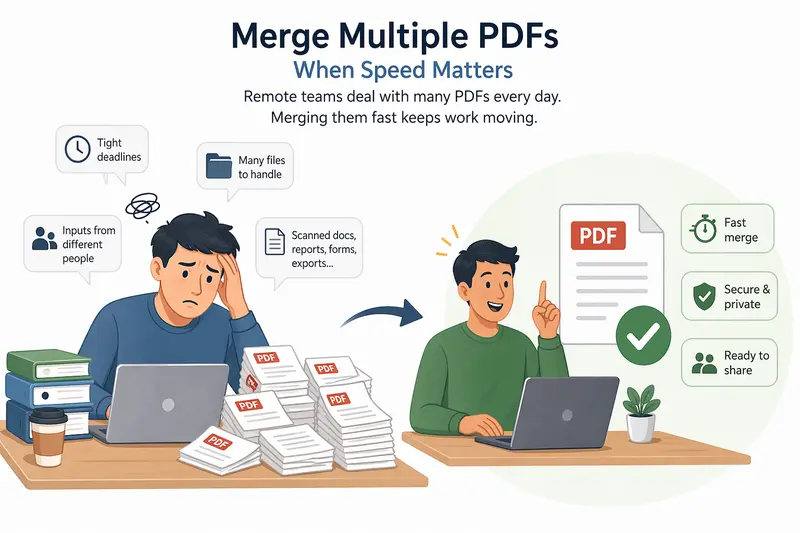
Remote teams rarely deal with just one document at a time. It’s usually a mix—contracts, scanned notes, reports, exports—all needing to be stitched together fast. When deadlines are tight, the ability to merge multiple PDFs efficiently becomes less of a convenience and more of a necessity.
The Simple Answer
If you need to merge PDFs quickly, use a browser-based tool that processes files in batches without requiring setup or installation. This approach reduces friction and keeps your workflow moving, especially when working across devices or teams.
How the Process Typically Works
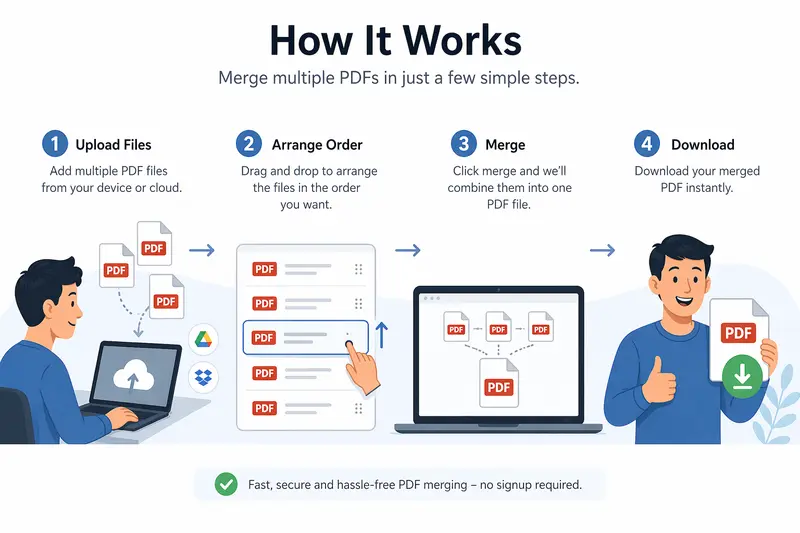
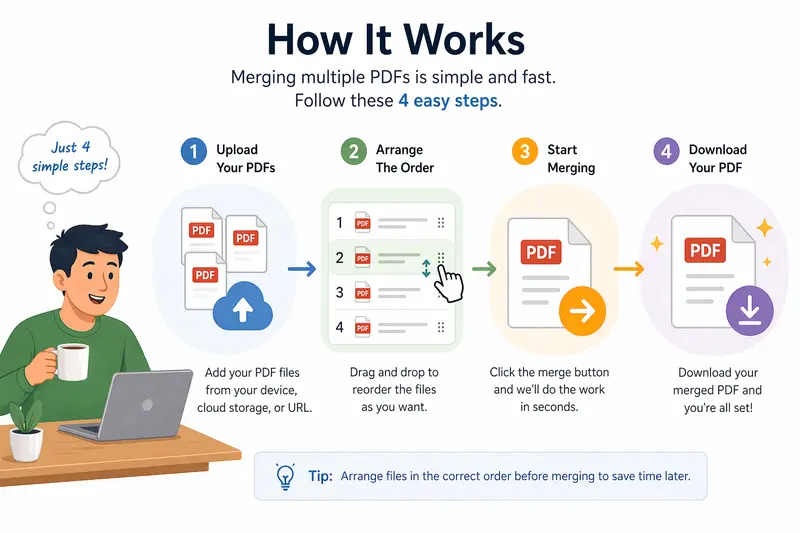
Instead of overcomplicating things, merging PDFs today follows a straightforward flow:
- Upload several PDF files (or import from cloud storage)
- Arrange them in the desired order
- Initiate the merge process
- Download the combined document once ready
What makes a difference isn’t the steps—it’s how fast and reliably the system handles large or mixed files.
A Faster Way to Handle It
A tool like merge PDF files online from Filemazing focuses heavily on speed while keeping everything inside your browser. There’s no need to create an account, which is particularly useful for quick, one-off tasks.
Because it runs in the browser, you can switch between devices without losing momentum. At the same time, the platform’s token-based system gives clarity on cost before processing—no surprises after uploading large files.
What Happened in a Real Test
I tested this with a typical remote workflow scenario:
- 12 PDF files
- Mix of scanned documents and exported reports
- Total size: ~85 MB
- Around 220 pages combined
The result:
The merge completed smoothly without freezing the browser or slowing down mid-process. The final file preserved page order correctly, and there was no noticeable degradation in scanned document clarity.
One takeaway:
If your files include scans, organizing them before upload (naming or ordering) saves time later—especially when merging large batches.
Common Mistakes That Slow You Down
Even with a fast tool, a few missteps can create unnecessary delays:
- Uploading unorganized files
Random file names make it harder to arrange them correctly later - Mixing incompatible formats
Some users try to combine images directly instead of converting them first - Ignoring file size buildup
Large merged PDFs can become difficult to share or store - Merging before cleaning files
Extra pages or duplicates increase processing time
A smarter approach is to prep your files before merging. For example, if you’re dealing with compressed archives of documents, you can first unpack them using an archive extraction tool before combining everything.
Where This Fits in Real Workflows
For remote teams, merging PDFs isn’t a one-time action—it’s part of recurring tasks:
- Combining weekly reports into a single document
- Merging signed contracts from different stakeholders
- Consolidating research materials or case studies
- Packaging onboarding documents for new hires
- Grouping invoices or financial records
- Preparing presentations from multiple exported PDFs
Why This Approach Works
Speed is the obvious benefit, but there’s more underneath:
- No installation delays across team members
- Works equally well on shared or personal devices
- Handles bulk files without constant manual intervention
- Predictable usage thanks to token-based pricing
- Supports both manual use and automated workflows
And importantly, files aren’t stored long-term. They’re processed temporarily and then cleared, which matters when working with sensitive business documents.
A Practical Tip Most People Miss
If your final PDF needs to be shared externally, consider what happens after merging.
For example:
If recipients need visual access rather than editing, converting pages into images can prevent formatting issues. You can do that by turning merged PDF pages into images for easier distribution across platforms that don’t handle PDFs well.
FAQ: What People Usually Ask
Does merging PDFs reduce quality?
Not usually. Most tools preserve original content. However, scanned PDFs depend on their initial resolution.
Can I combine scanned PDFs without issues?
Yes. Scanned files merge normally, but file size may increase due to embedded images.
Is it safe to merge PDFs online?
With platforms that use temporary processing and automatic cleanup, your files aren’t stored permanently.
What if I need to protect the final file?
After merging, you can secure it using a file encryption tool to add password protection.
Are there limits on file size or number?
Limits vary by tool, but batch-friendly systems handle large workloads better than traditional desktop apps.
Final Thoughts
When your workflow depends on speed, the ability to merge multiple PDFs efficiently can remove a surprising amount of friction from your day.
Filemazing’s browser-first approach keeps things lightweight, while its no-signup model and transparent token system make it practical for both quick tasks and ongoing team use.
If you’re juggling multiple documents regularly, it’s worth trying a faster, more flexible way to combine them—and keeping your workflow moving without unnecessary delays.