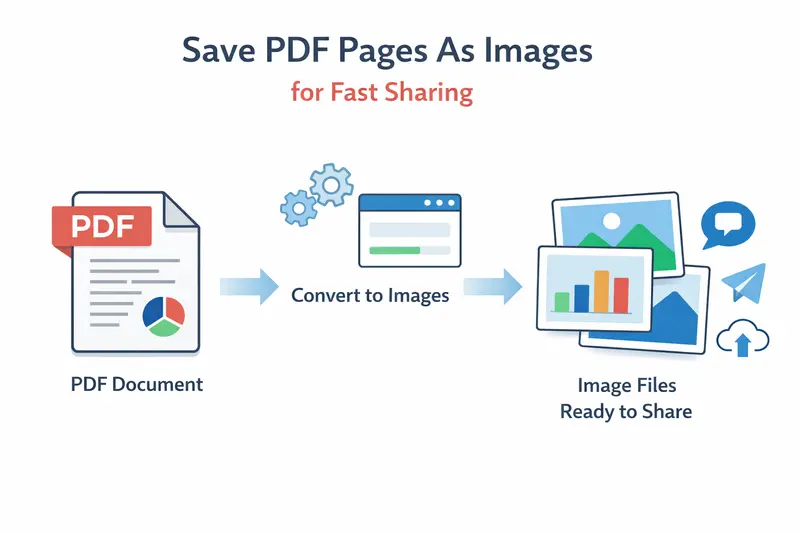
Remote teams rarely have time to wrestle with bulky documents. When you need to save PDF pages as images, the goal isn’t just conversion—it’s getting usable visuals fast enough to keep work moving.
Think about design reviews, marketing assets, or quick document sharing. PDFs are great for structure, but images are often easier to distribute, preview, and reuse across tools.
Quick Overview
To save PDF pages as images, you upload your document, choose an output format (like JPG or PNG), and export each page as a separate image file.
Modern tools handle this directly in your browser, so there’s no installation or waiting for large software to load.
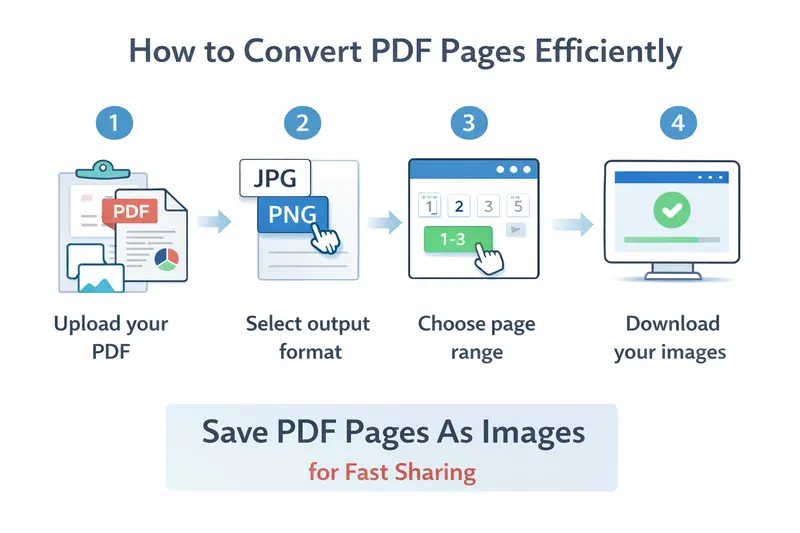
How to Convert PDF Pages Efficiently
The process doesn’t need to be complicated, but a few choices affect speed and output quality.
A practical approach:
- Upload your PDF (local file, cloud import, or URL)
- Select your preferred image format (JPG for lighter files, PNG for clarity)
- Choose whether to convert all pages or a specific range
- Start the conversion and let the system process in the background
- Download the exported images once ready
For larger files, tools that queue jobs instead of freezing your browser make a noticeable difference.
A Faster Way to Handle It in the Browser
One tool worth exploring is
👉 https://filemazing.com/pdf-to-image
It’s designed specifically for browser PDF image conversion without requiring desktop apps.
What stands out:
- Speed-first processing – jobs are queued and handled efficiently, even for large files
- Browser-based workflow – no setup or installation delays
- Token-based pricing that lets you estimate cost before running a job
- Works for both single files and batch PDF to image conversion
For remote teams juggling multiple documents daily, this reduces friction significantly.
Hands-On Test: What Actually Happens
To see how it performs in real conditions, I tested:
- A 42-page scanned PDF (about 18 MB)
- Mixed content: text-heavy pages + image-based scans
Results:
- Conversion completed in under a minute
- JPG output reduced file size by ~65% compared to PNG
- All pages exported cleanly with no missing content
One useful takeaway:
If you’re converting scanned PDFs, switching to JPG can dramatically speed up sharing, especially when sending files through Slack or email.
After conversion, I also ran the images through an image optimizer to reduce size further. If you need that step, you can compress images using https://filemazing.com/compress-image to make them even lighter for remote collaboration.
Format Comparison: JPG vs PNG (What to Choose?)
This is where many teams lose time—choosing the wrong format.
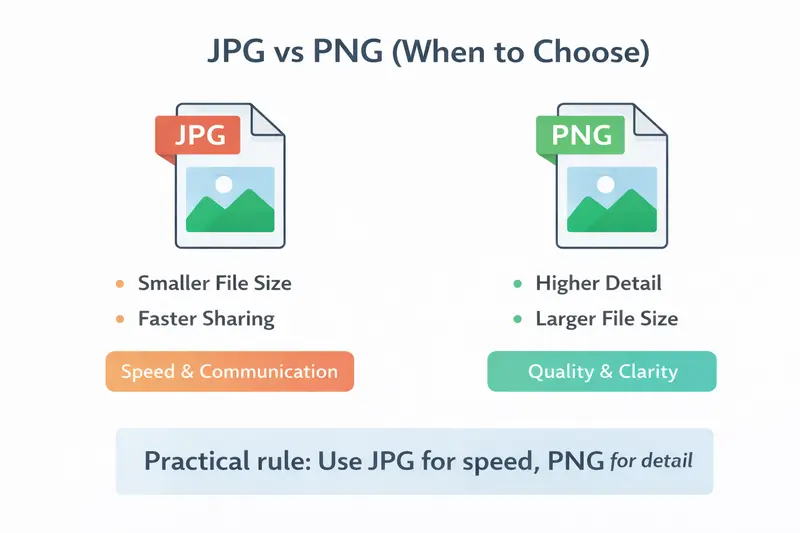
JPG
- Smaller file size
- Faster uploads and sharing
- Slight quality loss (usually acceptable for documents)
PNG
- Higher visual fidelity
- Better for diagrams, UI mockups, or detailed graphics
- Larger file size
Practical rule:
- Use JPG for speed and communication
- Use PNG when detail matters
There’s no universal “best”—it depends on your workflow priorities.
Where This Helps Remote Teams Most
This kind of conversion shows up in more places than expected:
- Sharing presentation slides as images in chat tools
- Extracting visuals from reports for marketing use
- Sending document previews without requiring PDF viewers
- Creating assets for social media from PDFs
- Reviewing documents asynchronously across time zones
- Preparing files for platforms that don’t support PDFs
Key Advantages You’ll Notice
- Faster distribution compared to full PDFs
- Easier compatibility across devices and tools
- Reduced friction in collaboration workflows
- Flexible output formats depending on use case
- Scalable for both one-off tasks and batch processing
FAQ
Is it safe to convert PDFs online?
Yes—if the platform uses temporary processing. Tools like Filemazing treat files as short-lived artifacts and remove them after processing instead of storing them long-term.
Can I convert multiple PDFs at once?
Yes. Batch processing is supported, which is especially useful for teams handling recurring document workflows.
Does converting to images reduce quality?
It depends on the format. PNG preserves quality, while JPG trades some detail for smaller file size.
What if my images are still too large?
You can optimize them further using an image compression tool like https://filemazing.com/compress-image to improve loading and sharing speed.
Can I combine PDFs before converting?
Absolutely. If you’re working with multiple documents, merging them first via https://filemazing.com/merge-pdf can simplify the conversion process.
Final Thoughts
When speed matters, the ability to save PDF pages as images isn’t just a convenience—it’s a workflow upgrade.
Browser-based tools like Filemazing remove the usual bottlenecks: no installation, predictable costs, and fast processing even for larger files. Combined with smart format choices and optional optimization, you can turn heavy PDFs into lightweight, shareable assets in minutes.
If your team handles documents daily, it’s worth trying a faster approach and seeing how much time it actually saves.