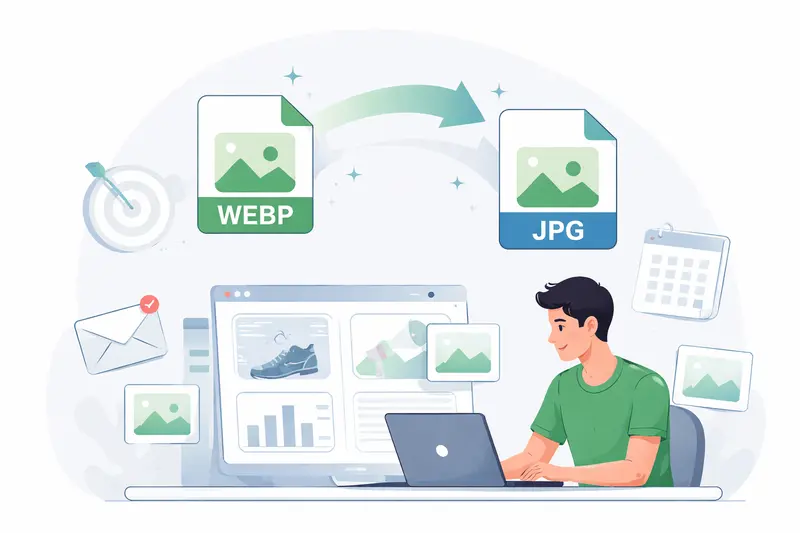
 Modern marketing workflows often involve handling dozens—sometimes hundreds—of images across campaigns. If you’re working on Linux, you’ve probably run into the issue: WEBP images are efficient, but not always compatible with ad platforms, email tools, or CMS systems. That’s where a reliable WEBP to JPG converter becomes essential.
Instead of juggling command-line tools or installing extra packages, many marketers now prefer browser-based solutions that fit directly into their workflow.
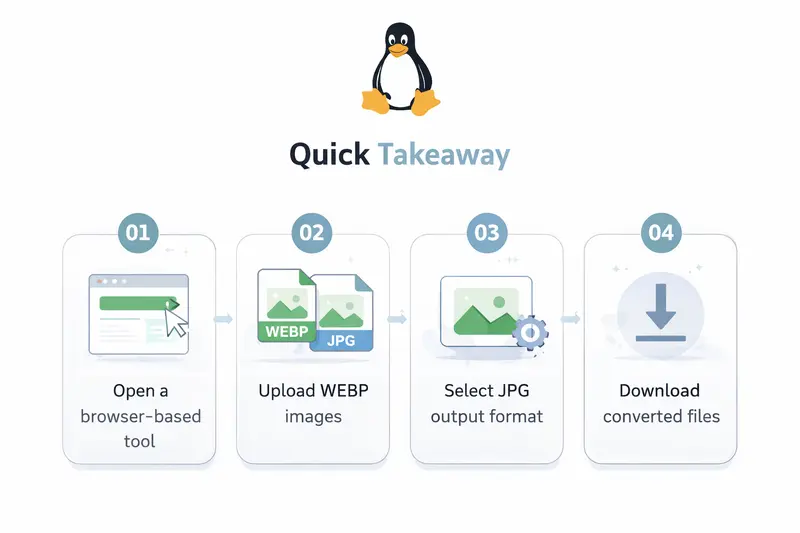
Quick Takeaway
Converting WEBP to JPG doesn’t have to mean sacrificing quality or speed. With the right tool, you can process batches, maintain visual clarity, and keep your files ready for marketing platforms—all without installing software.
How to Convert WEBP to JPG on Linux (Without Installing Tools)
Here’s a practical approach using a browser-based workflow:
- Open a format conversion tool in your browser
- Upload one or multiple WEBP files
- Select JPG as the output format
- Adjust quality settings if available
- Download the converted images once processing completes
This method avoids dependency issues common in Linux environments and works consistently across distributions.
A Better Approach for Marketers
If you want something built for speed and reliability, try
👉 https://filemazing.com/format-converter
Filemazing stands out because it focuses on high quality output while remaining fully browser-based.
- No software installation required
- Handles multiple formats beyond WEBP and JPG
- Supports batch processing for campaign assets
- Works equally well for one-off conversions or recurring workflows
You can also extend your workflow. For example, after converting images, you might want to remove sensitive metadata using the
👉 https://filemazing.com/metadata-scrubber
to ensure clean, privacy-safe assets before publishing.
What Happened When I Tested It
To evaluate real-world performance, I ran a test with:
- 25 WEBP images (exported from a design tool)
- Average size: ~800 KB each
- Mixed content: product shots, social graphics, and banners
Observations:
- Conversion completed in under a minute
- Output JPGs retained sharp edges and color consistency
- File sizes increased slightly (as expected), but stayed manageable
Key takeaway:
If you’re converting for marketing platforms, prioritize quality settings over aggressive compression—especially for text-heavy creatives. JPG artifacts can subtly blur typography if over-compressed.
Format Comparison: JPG vs PNG vs WEBP
Understanding when to use each format helps you avoid unnecessary conversions:
- JPG → Best for photos, ads, and general marketing visuals
- PNG → Ideal for transparency and sharp UI elements
- WEBP → Great for web performance but less universally supported
Tradeoff insight:
JPG reduces file size efficiently but introduces compression artifacts. WEBP is more efficient overall, but if your platform doesn’t support it, JPG remains the safest fallback.
Where This Helps in Marketing Workflows
This type of conversion becomes useful in everyday scenarios like:
- Preparing ad creatives for platforms that reject WEBP
- Uploading blog images to CMS systems with limited format support
- Converting design exports for email campaigns
- Standardizing image formats across team assets
- Preparing product images for marketplaces
- Reformatting bulk visuals from design tools
Why Marketers Prefer This Workflow
Instead of juggling multiple tools, this approach offers:
- Consistent output quality across batches
- No dependency on Linux packages or CLI tools
- Flexible format handling beyond just WEBP → JPG
- Transparent processing without hidden steps
If you’re also working with PDFs (like campaign decks or reports), you can convert them into images using
👉 https://filemazing.com/pdf-to-image
to reuse visuals across channels.
FAQ
Does converting WEBP to JPG reduce quality?
It can, depending on compression settings. Choosing higher quality output minimizes visible loss.
Is it safe to upload marketing images?
Yes—files are processed temporarily and not stored long-term, reducing privacy risks.
Can I convert multiple images at once?
Batch processing is supported, which is especially helpful for campaign assets.
What about HEIC image conversion?
Many format converters (including Filemazing) also support HEIC, making it useful for mobile-generated content.
Will file sizes increase after conversion?
Usually yes. JPG files tend to be larger than WEBP, but they’re more widely supported.
Final Thoughts
If you’re managing marketing assets on Linux, relying on a browser-based WEBP to JPG converter simplifies your workflow significantly. You avoid compatibility headaches, maintain image quality, and keep your process flexible.
Give it a try here:
👉 https://filemazing.com/format-converter
It’s a practical way to handle image conversions—whether you’re preparing a single campaign or managing assets at scale.